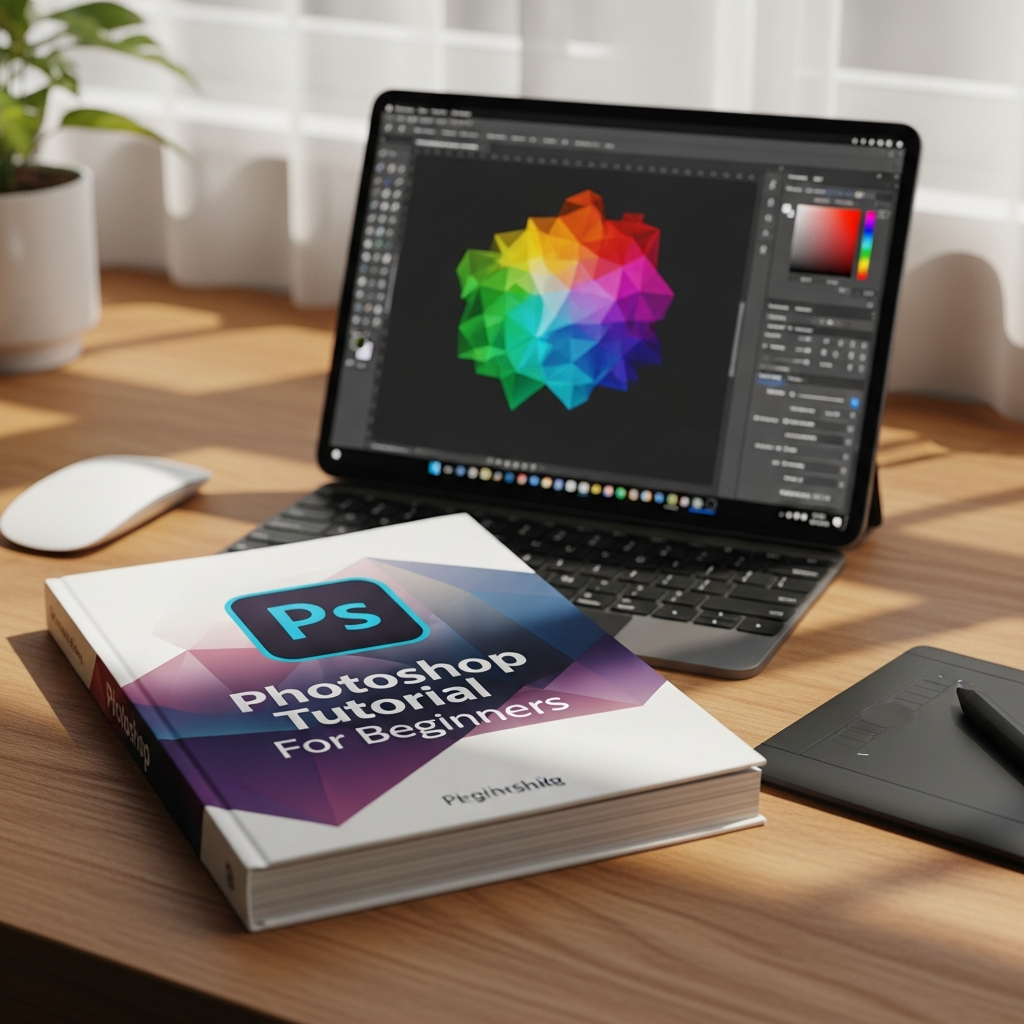
Photoshop Tutorial For Beginners: The Ultimate Step-by-Step Guide to Mastering Adobe Photoshop
Adobe Photoshop is the undisputed industry standard for digital imaging, graphic design, and photo editing. For a newcomer, however, the interface can appear intimidating, filled with an overwhelming array of buttons, sliders, and menus. This Photoshop tutorial for beginners is designed to strip away the complexity and provide you with a clear, structured path to mastery.
Whether you are looking to enhance your personal photos, create professional social media graphics, or embark on a career in digital art, understanding the fundamentals of this powerful software is your first step. In this comprehensive guide, you will learn everything from navigating the interface to executing professional-level edits using non-destructive workflows.
Understanding the Adobe Photoshop Ecosystem
Before diving into specific tools, it is essential to understand what Photoshop is—and what it is not. Unlike Adobe Illustrator, which uses vectors (mathematical paths), Photoshop is primarily a raster-based program. This means it works with pixels.
When you zoom in closely on a digital photograph, you see tiny squares of color; these are pixels. Photoshop allows you to manipulate these pixels with surgical precision. This makes it the perfect tool for photo retouching, compositing, and digital painting.
Why You Should Learn Photoshop Today
In the digital age, visual literacy is a superpower. By mastering this Adobe Photoshop guide, you gain the ability to:
- Retouch Portraits: Remove blemishes, whiten teeth, and adjust lighting.
- Create Brand Identity: Design logos, business cards, and marketing materials.
- Manipulate Reality: Combine multiple images to create surreal landscapes.
- Optimize Web Content: Prepare high-quality images that load quickly for websites.
Getting Started: The Photoshop Interface Explained
When you first open Photoshop CC (Creative Cloud), you are greeted by the “Home” screen. From here, you can create a new document or open an existing file. Once you enter the main workspace, you will notice four primary areas:
1. The Menu Bar (Top)
This contains standard menus like File, Edit, Image, Layer, and Filter. Most of the high-level commands and settings are housed here.
2. The Tools Panel (Left)
This is your “toolbox.” It contains the basic tools you will use for selecting, cropping, painting, and typing. Many tools have hidden variations; you can access them by right-clicking or long-pressing a tool icon.
3. The Options Bar (Below the Menu Bar)
The Options Bar is context-sensitive. It changes depending on which tool you have selected in the Tools Panel. For example, if you select the Brush Tool, the Options Bar will show settings for brush size, hardness, and opacity.
4. Panels (Right)
Panels help you monitor and modify your work. The most critical panel is the Layers Panel. Other common panels include Properties, Color, and History.
Core Concepts: The Pillars of Photoshop
To succeed in any photo editing for beginners journey, you must master three core concepts: Layers, Selections, and Masks.
The Magic of Layers
Imagine a stack of transparent glass sheets. You paint on one sheet, place a cutout on another, and write text on a third. When you look down from the top, they appear as a single image, but you can move or edit each sheet independently. This is exactly how the Layers Panel works.
Pro Tip: Always name your layers. “Layer 1” and “Layer 2” become confusing very quickly when you have a project with 50 layers. Double-click the layer name to rename it.
Precision with Selection Tools
You cannot edit what you haven’t selected. Photoshop provides several ways to isolate parts of an image:
- Marquee Tool: For simple geometric shapes like rectangles and circles.
- Lasso Tool: For freehand selections.
- Quick Selection Tool: Uses AI to find edges automatically—a favorite for beginners.
- Object Selection Tool: Simply draw a box around an object, and Photoshop will “shrink-wrap” the selection around it.
Non-Destructive Editing with Masks
One of the biggest mistakes beginners make is using the Eraser tool. When you erase pixels, they are gone forever. Instead, use Layer Masks.
- White on a mask makes pixels visible.
- Black on a mask hides pixels.
If you make a mistake, you can simply paint white back over the area to reveal the image again. This is known as non-destructive editing.
Step-by-Step Guide: Your First Project
Let’s put theory into practice. Follow these steps to perform a basic yet professional edit.
Step 1: Opening Your Image
Go to File > Open and select a photo from your computer. Alternatively, create a blank canvas by going to File > New. For web use, a resolution of 72 DPI (dots per inch) is standard; for print, use 300 DPI.
Step 2: Basic Cropping and Straightening
Select the Crop Tool (C) from the toolbar. You can drag the corners to reframe your image. If your horizon is crooked, click the “Straighten” icon in the Options Bar and draw a line along the horizon. Photoshop will automatically rotate and crop the image for you.
Step 3: Using Adjustment Layers
Do not go to Image > Adjustments. Instead, go to the bottom of the Layers Panel and click the half-filled circle icon (New Adjustment Layer). Select Brightness/Contrast or Hue/Saturation.
This creates a separate layer for your edits, allowing you to change them later without damaging the original photo.
Step 4: Removing Unwanted Objects
The Spot Healing Brush Tool is like magic. Select it, adjust the brush size using the bracket keys [ and ], and simply paint over a blemish, a stray power line, or a speck of dust. Photoshop’s AI analyzes the surrounding pixels and blends the area perfectly.
Step 5: Adding Text
Select the Type Tool (T), click on your canvas, and start typing. You can change the font, size, and color in the Options Bar at the top. This creates a “Type Layer” which remains editable at any time.
Essential Photoshop Keyboard Shortcuts
To work like a professional, you must move your hand away from the menus and onto the keyboard. Memorize these essential shortcuts:
- V: Move Tool
- B: Brush Tool
- Z: Zoom Tool (Click and drag right to zoom in, left to zoom out)
- Spacebar (Hold): Hand Tool (To navigate around a zoomed-in image)
- Ctrl/Cmd + Z: Undo (The most important shortcut!)
- Ctrl/Cmd + T: Free Transform (To resize or rotate a layer)
- Ctrl/Cmd + J: Duplicate Layer
- Ctrl/Cmd + D: Deselect (Remove the “marching ants” selection)
Advanced Beginner Tips for Better Workflow
Once you are comfortable with the basic tools, use these strategies to elevate your work:
1. Use Smart Objects
Right-click a layer and select “Convert to Smart Object.” This protects the original image data. If you shrink a Smart Object and then scale it back up, it won’t lose quality. A regular raster layer would become blurry.
2. Master Blending Modes
At the top of the Layers Panel, you will see a dropdown menu that says “Normal.” These are Blending Modes. They change how a layer interacts with the layers beneath it.
- Multiply: Great for darkening and removing white backgrounds.
- Screen: Great for brightening and removing black backgrounds.
- Overlay: Increases contrast and vibrance.
3. Organize with Groups
As your project grows, select multiple layers and press Ctrl/Cmd + G to put them in a folder (Group). This keeps your workspace clean and professional.
How to Export Your Work Properly
Your masterpiece is finished, but how do you share it?
- PSD (Photoshop Document): This is your working file. It preserves all layers and masks. Always save a PSD so you can edit the project later.
- JPEG: The standard for photos. It compresses the file size but loses layer data.
- PNG: Best for graphics with transparency (no background).
- Export As: Go to File > Export > Export As… to choose your format, quality, and image size specifically for web or social media use.
Frequently Asked Questions (FAQ)
Is Photoshop difficult to learn for a complete beginner?
While the software is deep, the basics are very accessible. Most beginners can learn to perform basic photo retouching and graphic design within a few days of consistent practice.
Can I use Photoshop for free?
Adobe offers a 7-day free trial of the full version of Photoshop. After that, it requires a subscription to Creative Cloud. There is no “free forever” version of the official software.
What is the difference between Photoshop and Lightroom?
Lightroom is designed for managing and processing thousands of photos (color grading, exposure), while Photoshop is for “pixel-level” manipulation (removing objects, adding text, compositing).
Do I need a drawing tablet to use Photoshop?
No, a mouse or trackpad is sufficient for most tasks. However, if you plan on doing digital illustration or complex photo retouching, a tablet with pressure sensitivity (like a Wacom) is highly recommended.
How do I fix a mistake in Photoshop?
The easiest way is to use Ctrl + Z to undo. You can also use the History Panel to jump back multiple steps in time.
Conclusion: Your Creative Journey Starts Here
Mastering Adobe Photoshop is a marathon, not a sprint. This Photoshop tutorial for beginners has provided you with the foundational knowledge of the interface, layers, and essential tools. The key to becoming an expert is experimentation.
Don’t be afraid to click buttons and see what they do. Every professional designer was once a beginner staring at the same complex screen. Start small, practice daily, and soon you will be creating visuals that you once thought were impossible.
Are you ready to create? Open Photoshop and start your first project today!